Toggle Your View
Toggle View switches between the standard immersive office view and a top-down map of the entire space — use Map View to find people quickly, Standard View to move and talk.
Toggle Your View
To switch between Standard View and Map View:
-
Open the 2gether Portal URL in your browser, log in, and enter a virtual space.
-
Click the Toggle View button in the bottom navigation bar.
-
The view switches between:
- Standard View — your avatar moves through the office in real time. Proximity audio activates automatically near colleagues.
- Map View — a top-down layout of the whole office. Every room, desk, and participant location is visible at once.
-
Click Toggle View again at any time to switch back.
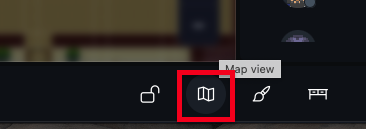
Figure 1. Map View showing the full office layout and participant locations. 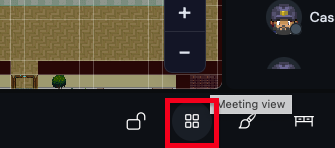
Figure 2. Standard View for normal avatar movement and interaction.
note
Switching views only affects your own display — other participants see no change.
Use Map View to orient yourself, then switch to Standard View to interact.