Make Calls
The Phone panel is a built-in soft phone connected to your Connect Portal extension — make and receive calls without leaving WiLine 2gether.
Make a Call
To make a call:
-
Open the 2gether Portal URL in your browser, log in, and enter a virtual space.
-
Click the Phone button in the bottom navigation bar. The panel opens.
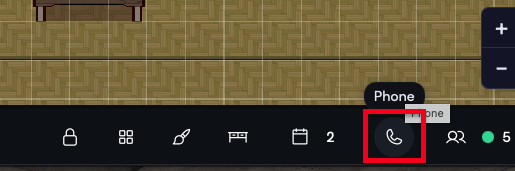
Figure 1. Phone button in the bottom navigation bar. -
Enter a phone number using the dial pad.
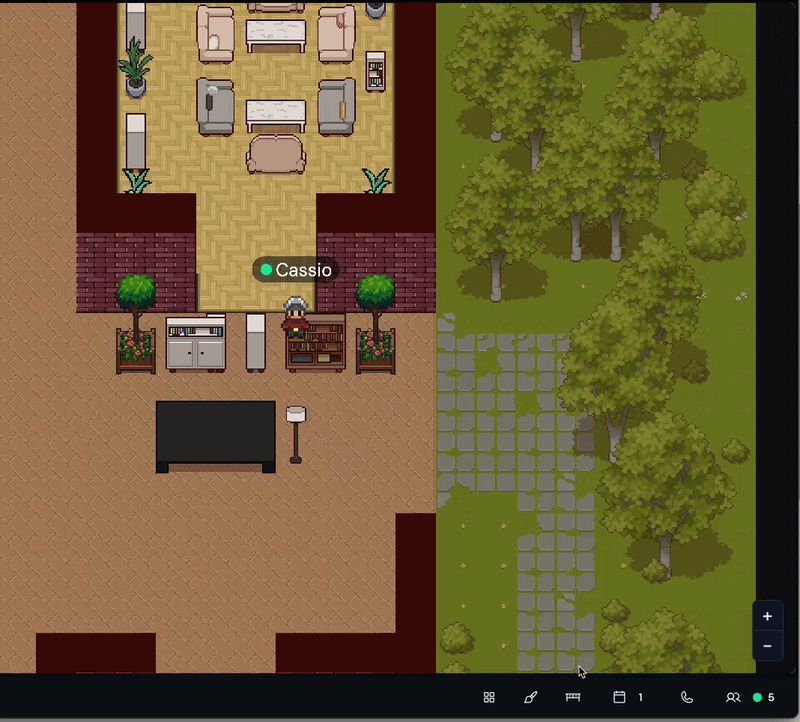
Figure 2. The soft phone panel with dial pad and recent call history. -
Click Call. A dialing window appears while the call connects.
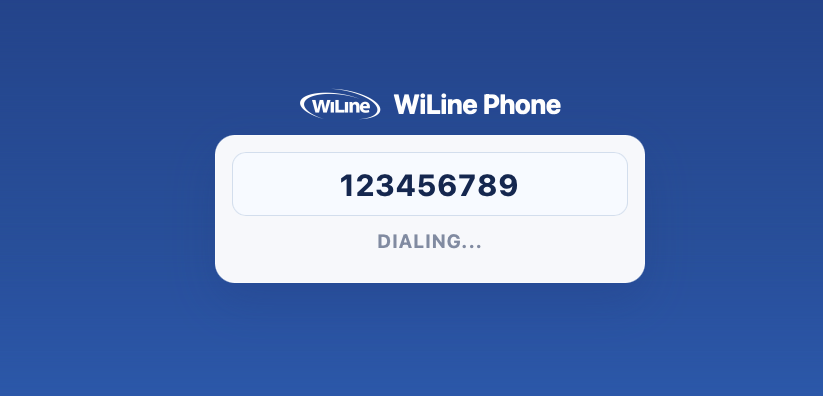
Figure 3. Dialing window during an active call. -
Speak using your configured microphone and speakers.
Receive a Call
When an incoming call arrives, click Answer on the notification. Call controls appear in the panel immediately.
The Phone feature requires an active Connect Portal account with a configured extension. If calls are not working:
- Confirm microphone and speaker permissions are allowed in the browser.
- Verify your Connect Portal account and extension are active.
- Check that no other app is blocking your audio devices.
- Use a headset to reduce echo and improve call quality.
- Mute your microphone when not on a call during shared office sessions.
Your business phone line is always with you inside 2gether — no app switching required.