View Participants
The Participants panel shows everyone currently active in the space — search, filter, and interact with teammates without walking across the virtual office.
Access Participants
To access the participants list:
-
Open the 2gether Portal URL in your browser, log in, and enter a virtual space.
-
Click the Participants button in the bottom navigation bar. The panel opens with a live list of everyone in the space.
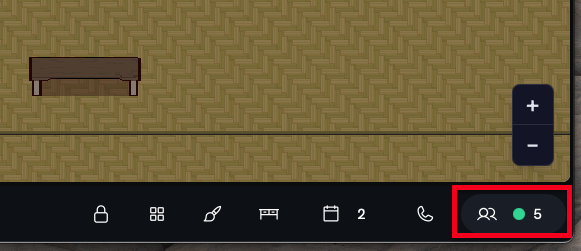
Figure 1. Participants button in the bottom navigation bar. -
Use the Search participants bar to find a colleague by name.
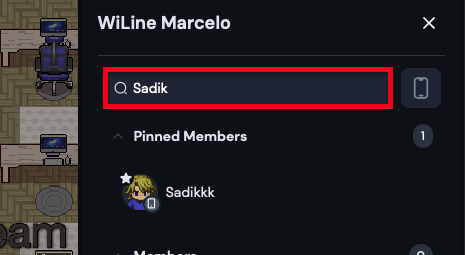
Figure 2. Searching for a participant by name. -
Use Filter by mobile to show only participants connected from a mobile device.
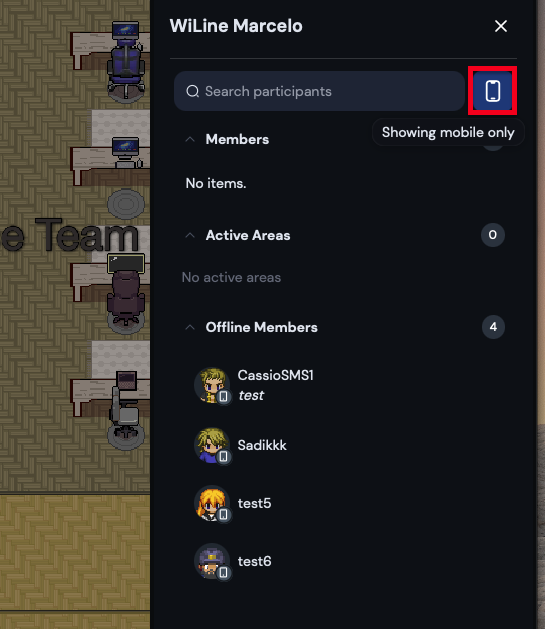
Figure 3. Filtering participants by mobile connection.
Interact with a Participant
To interact with a participant:
-
Click a participant in the list. A menu of options appears.
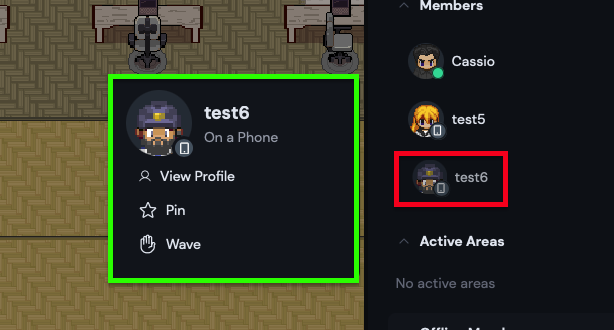
Figure 4. Interaction options for a selected participant. -
Choose an action:
- Wave — send a non-intrusive notification to get their attention. Only available when the participant is online.
- Pin — pin the participant to the top of the list for faster access.
- View Profile — open their profile card with account details.
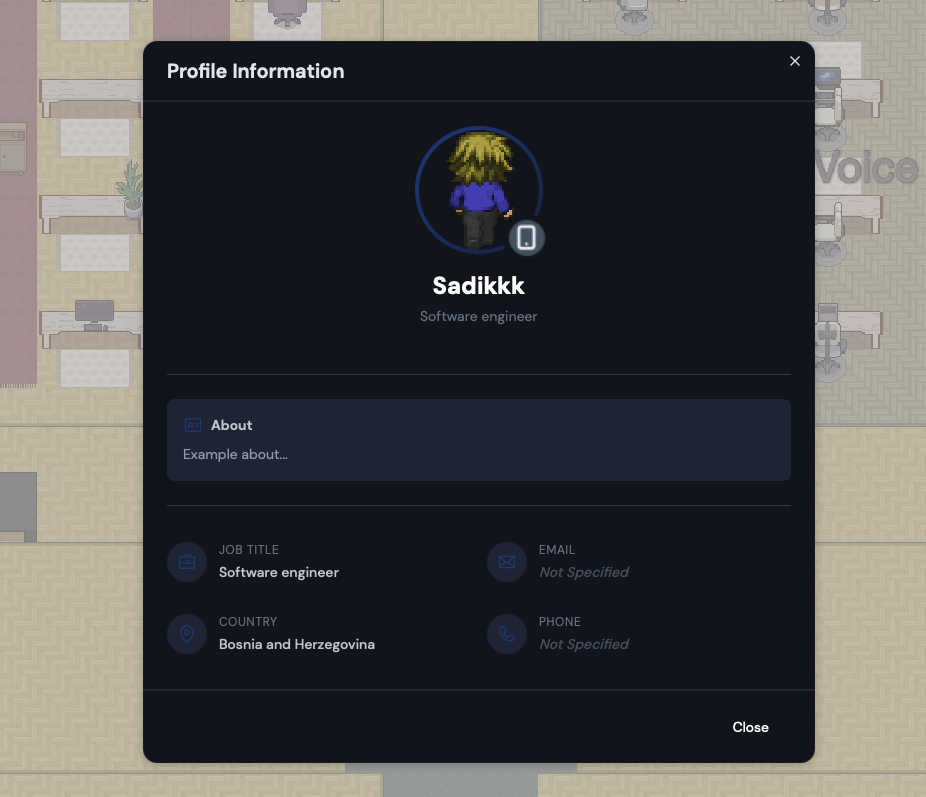
Figure 5. Participant profile pop-up.
Pin teammates you contact frequently so they always appear at the top of the list.
The Participants panel keeps your full team roster one click away, no matter where everyone is in the office.