View Your Meetings
The Meetings panel shows your upcoming and past meetings synced from Connect Portal — and lets you join any upcoming meeting without leaving WiLine 2gether.
Access Your Meetings
To view your meeting schedule:
-
Open the 2gether Portal URL in your browser, log in, and enter a virtual space.
-
Click the Meetings button in the bottom navigation bar. The Meetings panel opens.
-
Review your schedule:
- Upcoming meetings — date, time, and participants for each scheduled meeting.
- Past meetings — history of previous calls and conferences.
-
Click any meeting to view its full details.
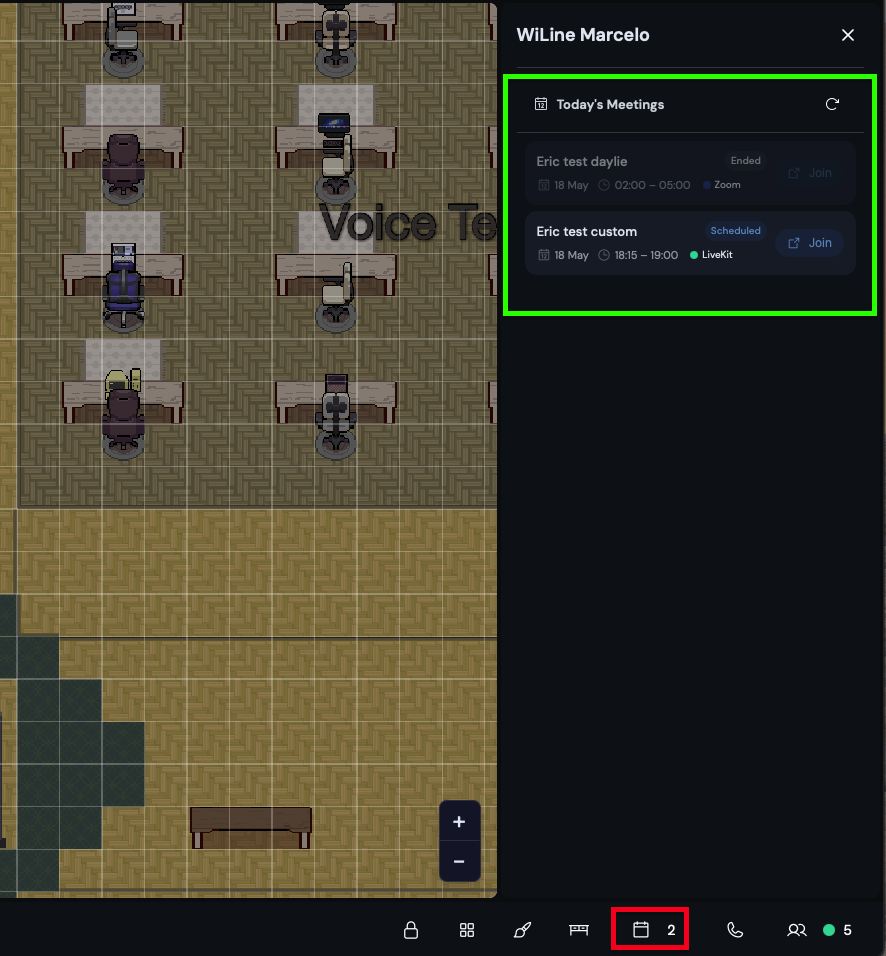
Figure 1. Meetings panel with upcoming and past meetings.
Meetings sync from your Connect Portal account. If a meeting is missing, verify your Connect Portal account is active and you are logged in with your WiLine credentials.
Join a Meeting
To join an upcoming meeting:
-
Open the Meetings panel.
-
Under Upcoming meetings, locate the meeting to join.
-
Click the Join button next to it.
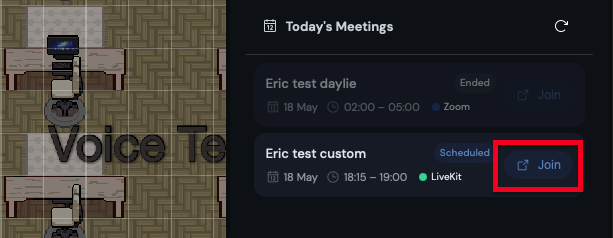
Figure 2. The Join button next to an upcoming meeting. -
Allow microphone and camera access when prompted.
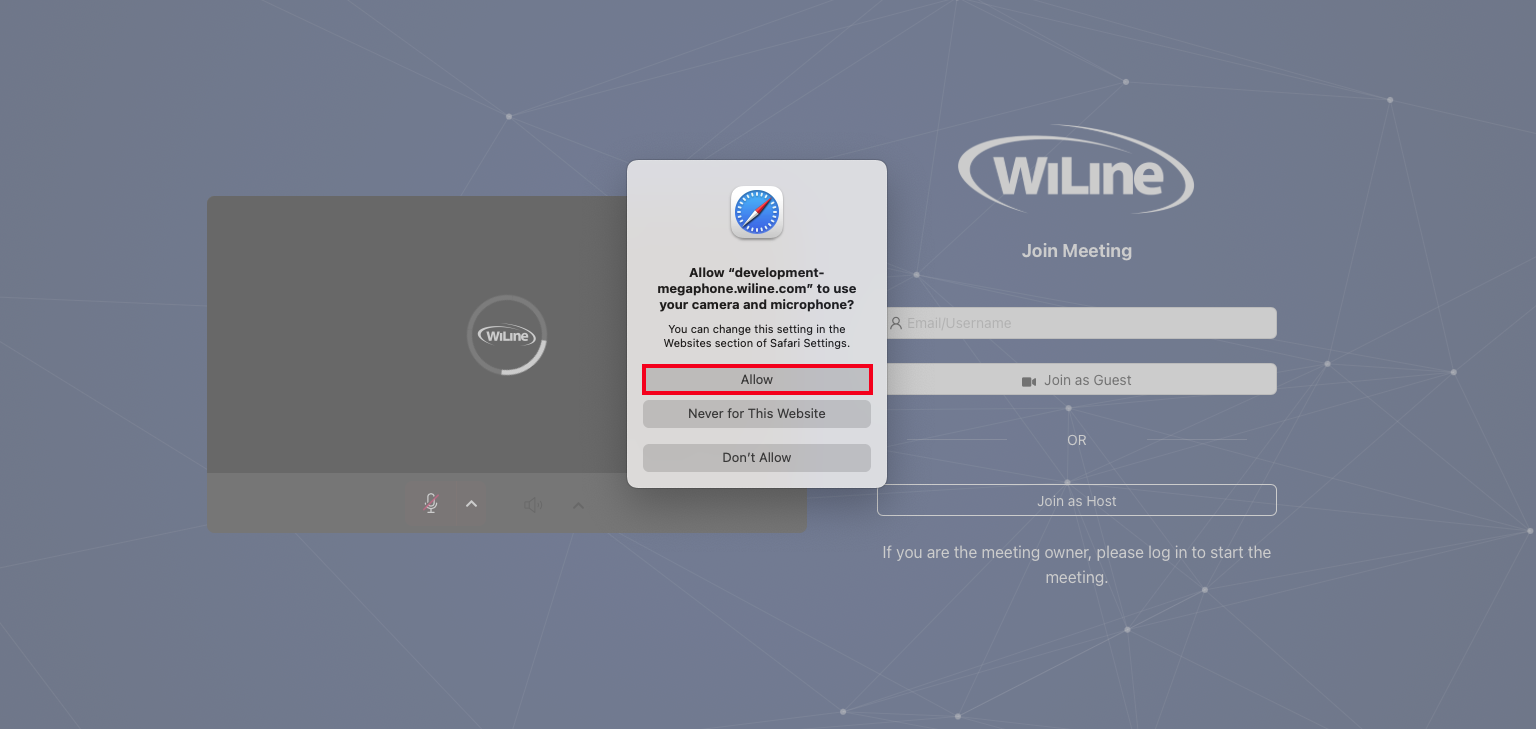
Figure 3. Microphone and camera permission prompt. -
Choose how to enter:
- Join as Host — sign in for full host controls.
- Join as Guest — enter your name and join without signing in.
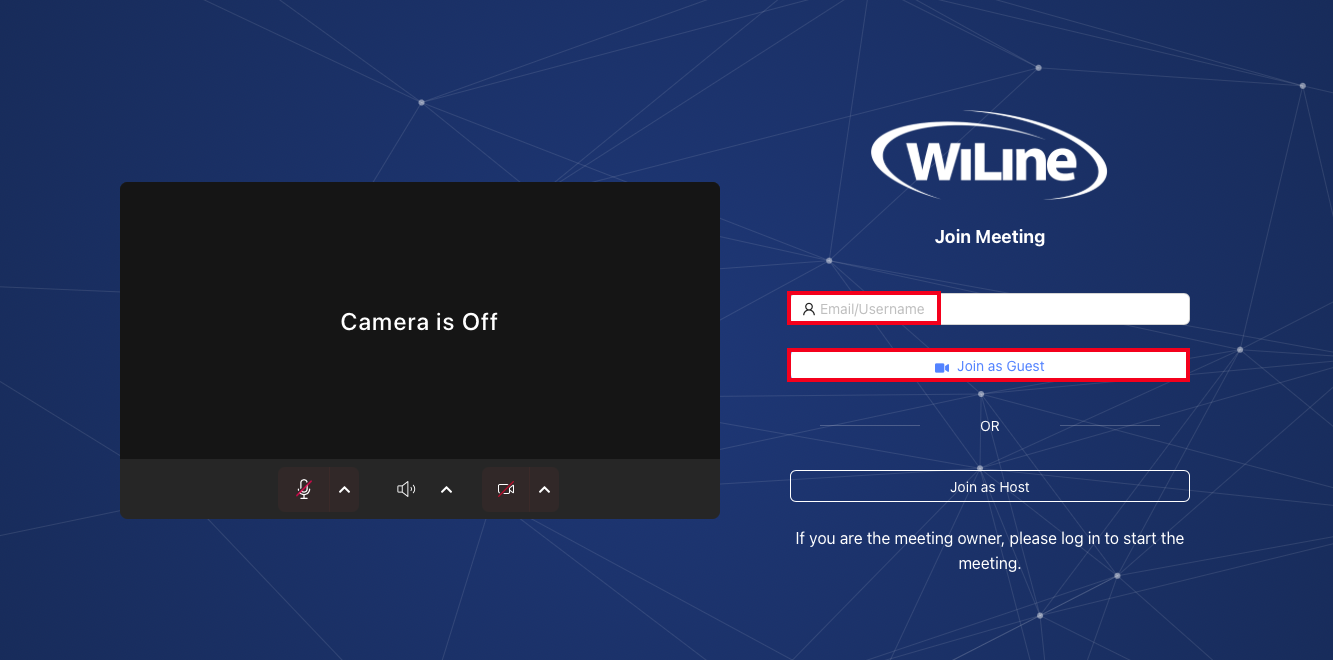
Figure 4. Joining as host or guest. -
Confirm. The meeting room opens.
Enable microphone and camera permissions in your browser before the meeting starts to avoid delays.
Your full meeting schedule is always one click away, right inside the virtual office.