Lock Your Room
Lock Room prevents other participants from entering your current room — useful for private conversations, interviews, or focused work.
Lock Your Room
To lock your room:
-
Open the 2gether Portal URL in your browser, log in, and enter a virtual space.
-
Enter the room you want to lock.
-
Click the Lock Room button in the bottom navigation bar.
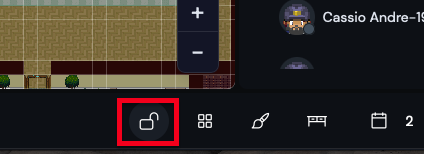
Figure 1. Lock Room button in the bottom navigation bar. The room is now locked. Participants outside cannot enter. Anyone already inside stays connected.
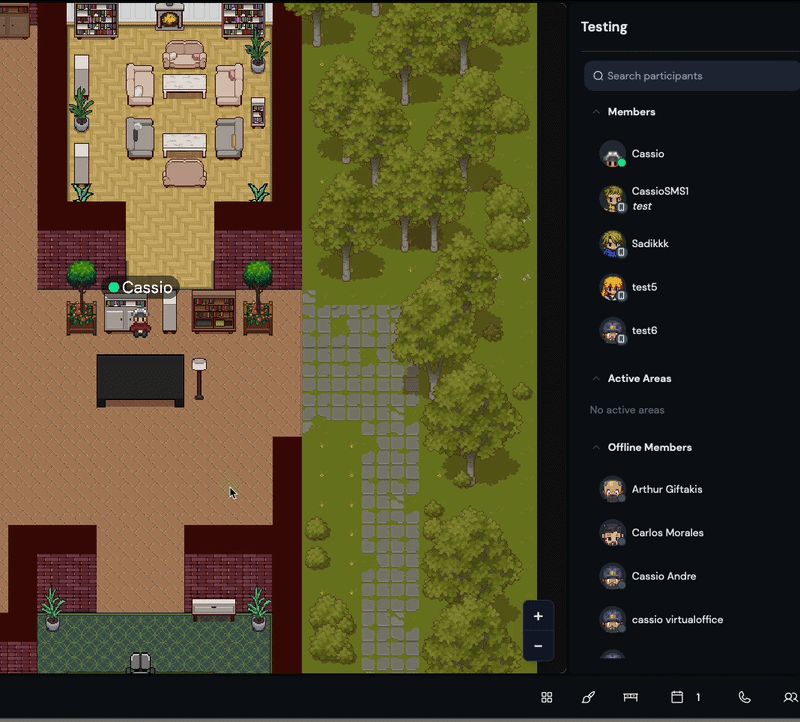
Figure 2. A locked room shown as unavailable to outside participants. -
Click Lock Room again to unlock. The room opens immediately.
Locking only blocks new entrants. Participants already inside the room are not affected.
- Lock before starting a sensitive conversation, not mid-way through.
- Unlock as soon as the session ends so teammates know you are available.
Lock Room gives you a private space on demand without leaving the virtual office.