Explore Features
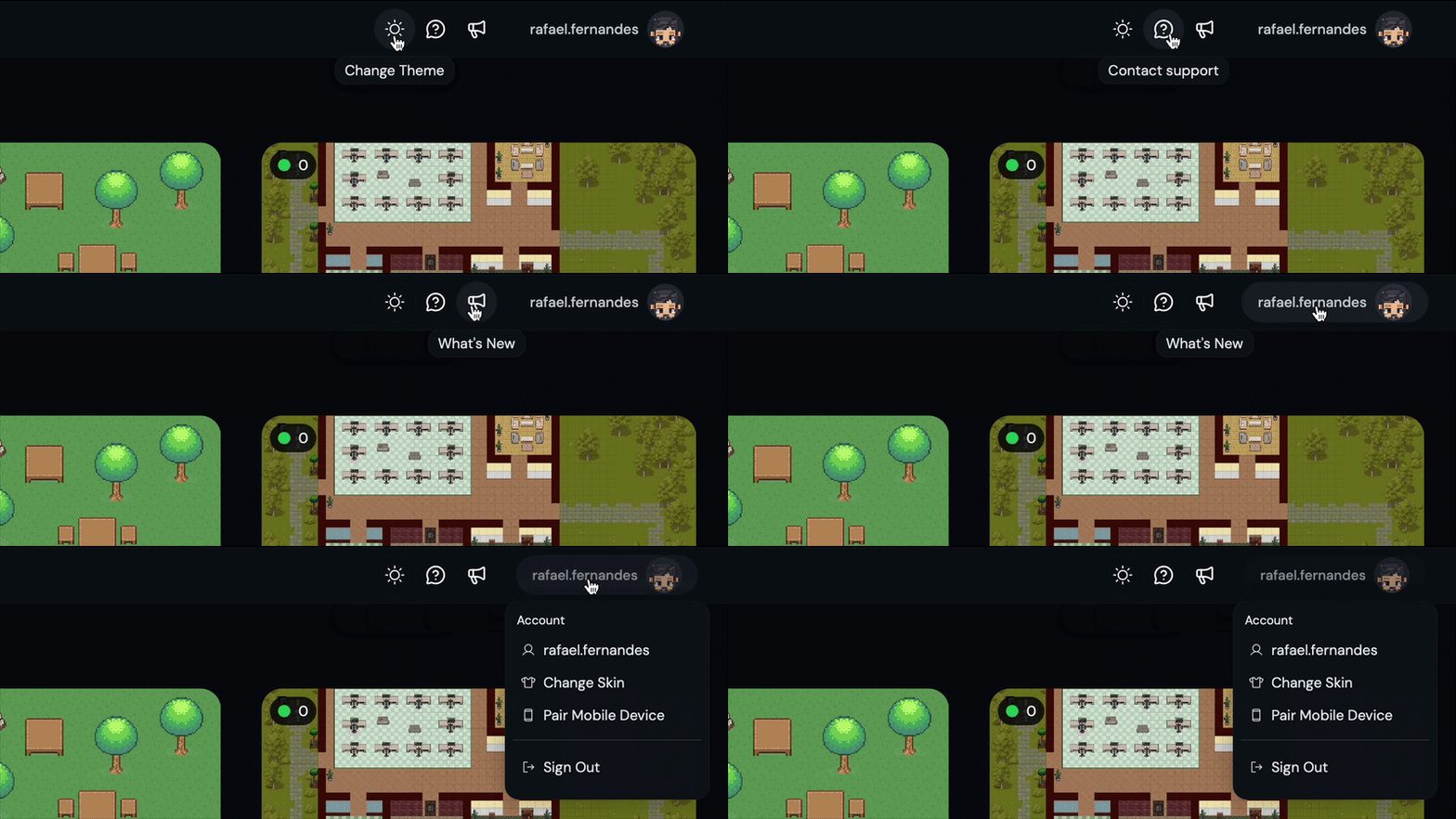
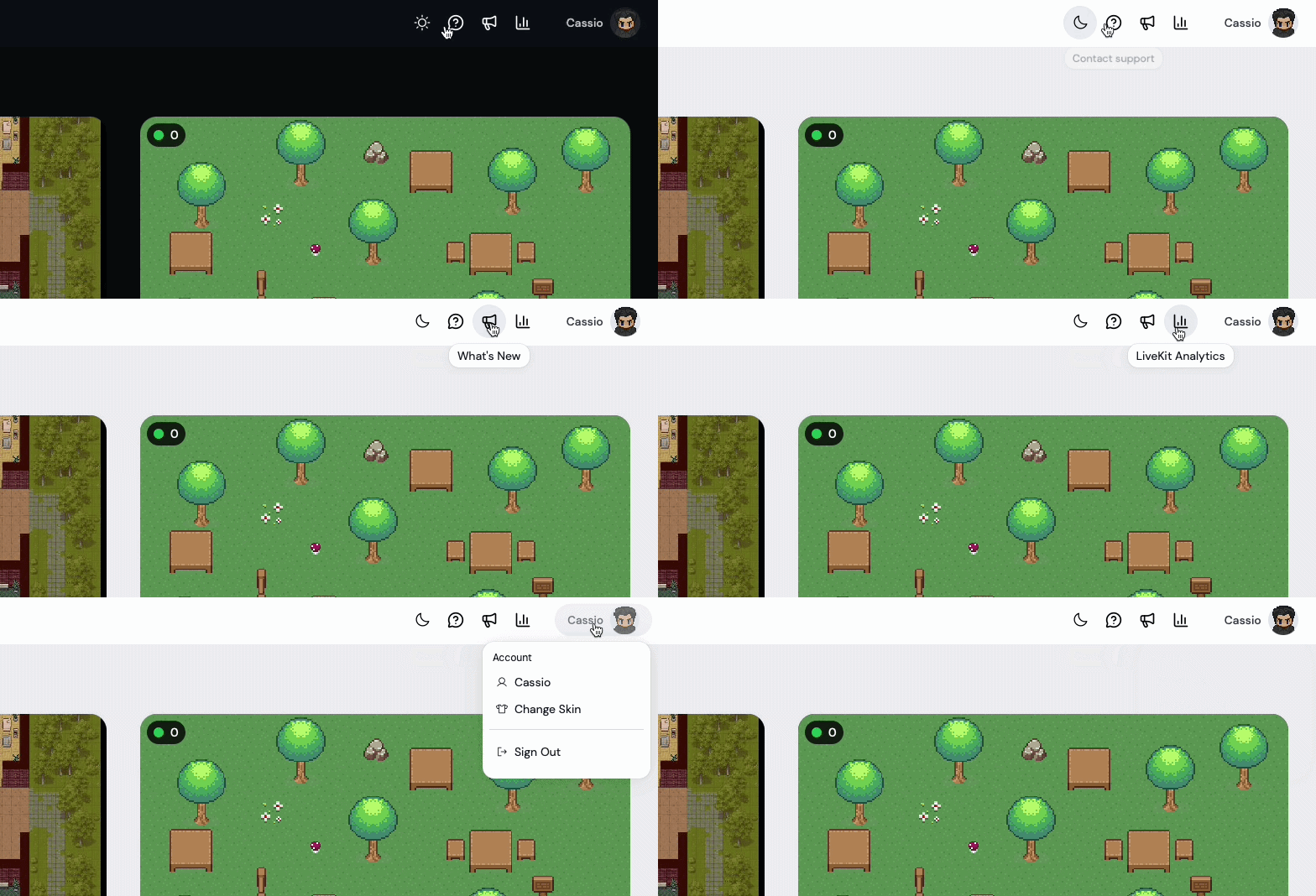
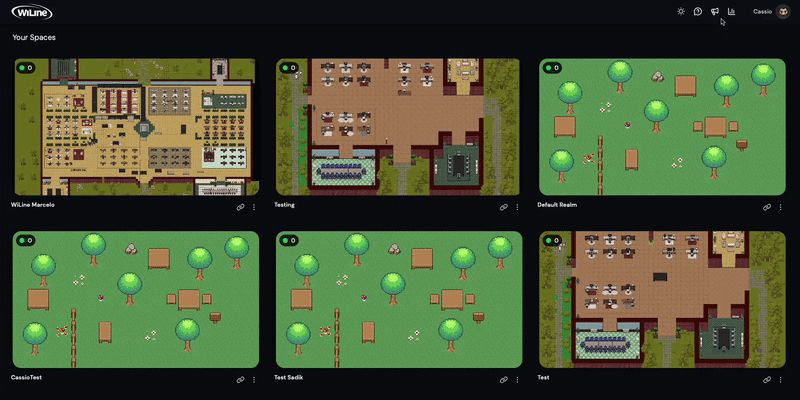
The top-right area of the interface gives every user quick access to theme settings, support, platform updates, and account management. Administrators have an additional feature — WiLine 2gether Analytics — not visible to regular users.
Available Features
To access any of these features:
- Open the 2gether Portal URL in your browser and log in.
- Locate the feature icons in the top-right area of the interface.
Regular users
Administrators
| Feature | Available to | What it does |
|---|---|---|
| Change Theme | All users | Switch the interface between Light and Dark mode to match your environment or reduce eye strain. |
| Contact Support | All users | Report a bug, get help with a feature, or raise an issue — submit a ticket without leaving 2gether. |
| What's New | All users | View the current platform version and a categorized list of recent updates, bug fixes, and new features. |
| Account Options | All users | Change your avatar skin, pair your mobile device, and sign out. Administrators also access Settings for license and billing management. |
| WiLine 2gether Analytics | Administrators only | Monitor meeting activity across all spaces — total meetings, peak users, average duration, and more. |
Change Theme
Switch between dynamic themes:
- Locate the top-right feature area.
- Select Change Theme.
- Choose Light or Dark.
The theme applies immediately and persists across sessions.
Contact Support
Submit a support ticket without leaving the office:
- Locate the top-right feature area.
- Select Contact Support.
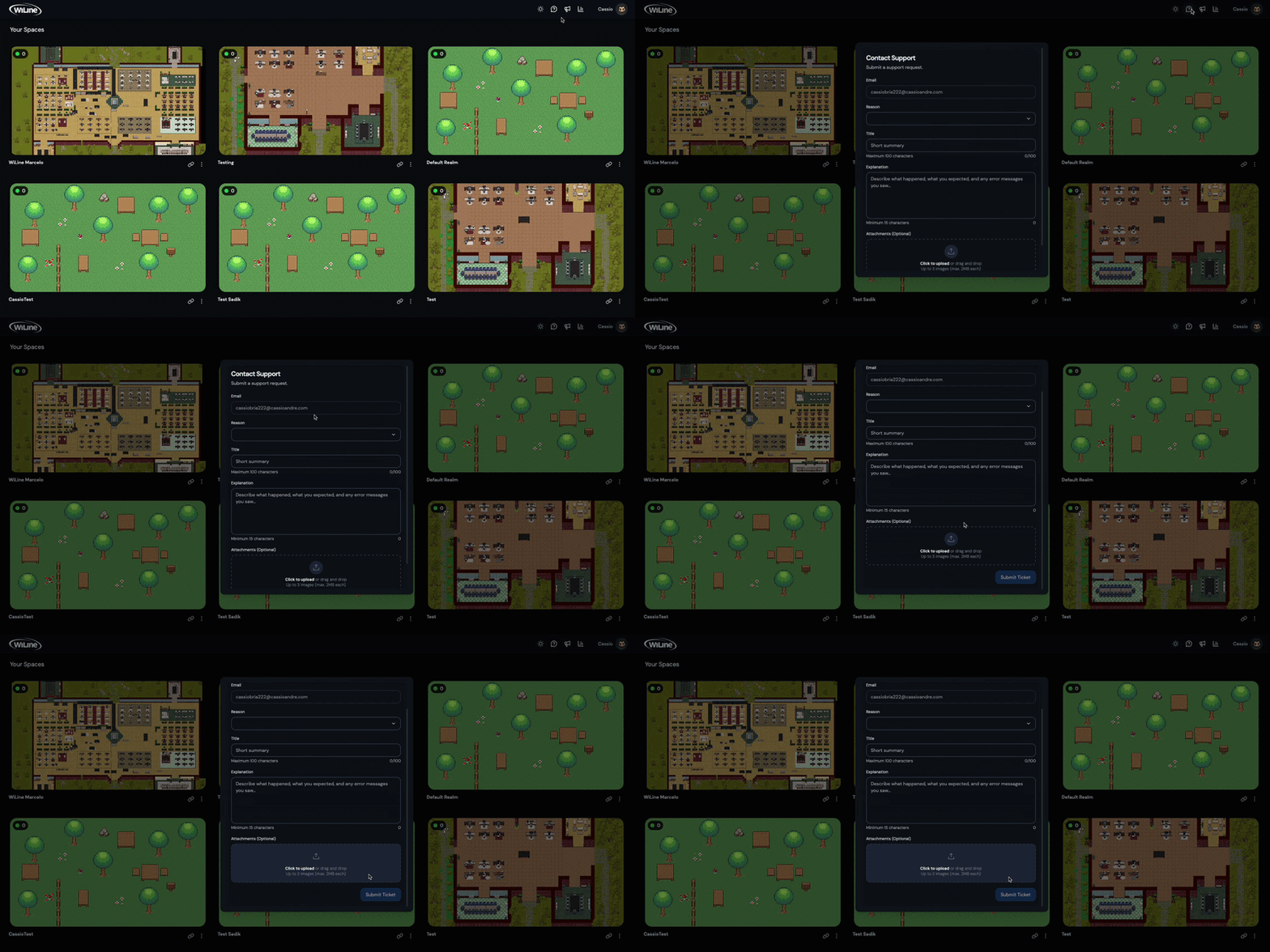
- Fill in the form:
- Email — pre-filled with your account email.
- Reason — select the category that best describes the issue.
- Title — short summary, max 100 characters.
- Explanation — describe what happened and what was expected, min 15 characters.
- Attachments — up to 3 screenshots or images, max 2 MB each.
- Click Submit.
A confirmation email arrives after submission. A support agent follows up at the email address on file.
- Audio, video, or connection issues — microphone not working, video dropping, or lag during sessions.
- Access problems — missing spaces, permission errors, or trouble entering a room.
- Unexpected behavior or bugs — anything that does not work as described.
- Account or billing questions — changes to your plan, seat counts, or payment details.
- Feature questions or feedback — how something works, or suggestions for improvement.
WiLine 2gether Analytics (Administrators only)
Monitor meeting activity across all your virtual spaces from a dedicated analytics dashboard — no external tools needed.
To open Analytics:
- Locate the top-right feature area.
- Select WiLine 2gether Analytics.
- Use the Space dropdown to select the space to analyze.
- Use the Time range filter to set the period: Today, Last 7 days, Last 30 days, or Last 90 days.
For full details see WiLine 2gether Analytics in the Admin Guide.
This feature is only visible to administrator accounts.
View What's New
Keep up-to-date with the latest features and app bug fixes:
- Locate the top-right feature area.
- Select What's New.
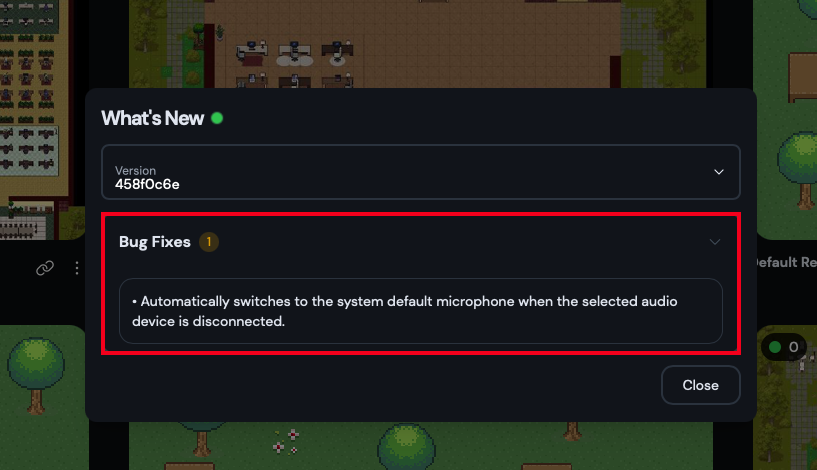
The panel shows the current version and a categorized list of recent updates. Expand any category to read the details.
Manage Account Options
To manage your account settings:
- Locate the top-right feature area.
- Select Account Options.
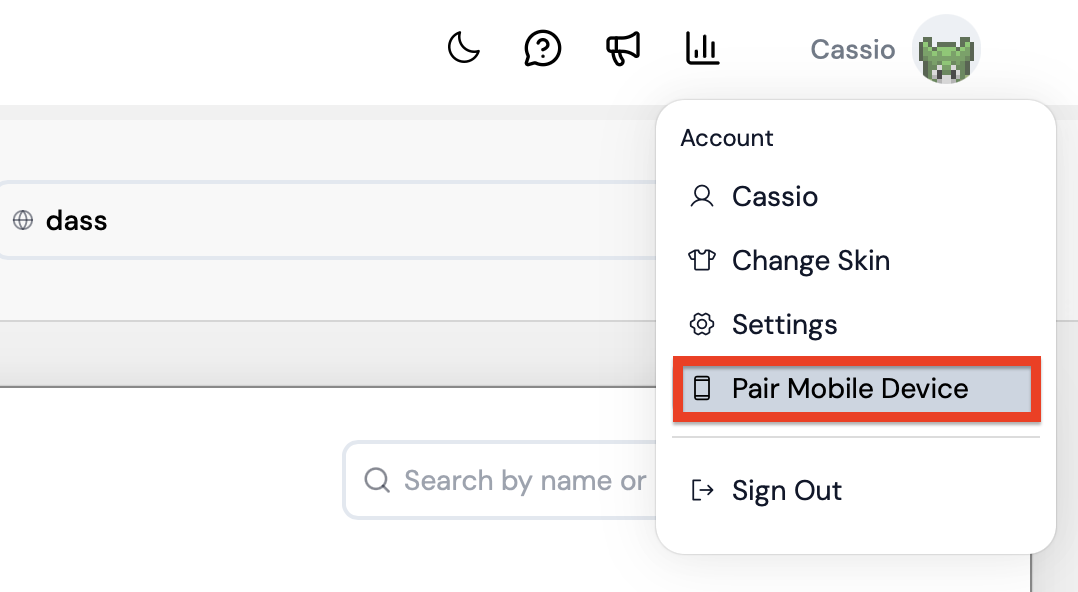
The menu shows four options: Change Skin, Settings (administrators only), Pair Mobile Device, and Sign Out.
Change Skin
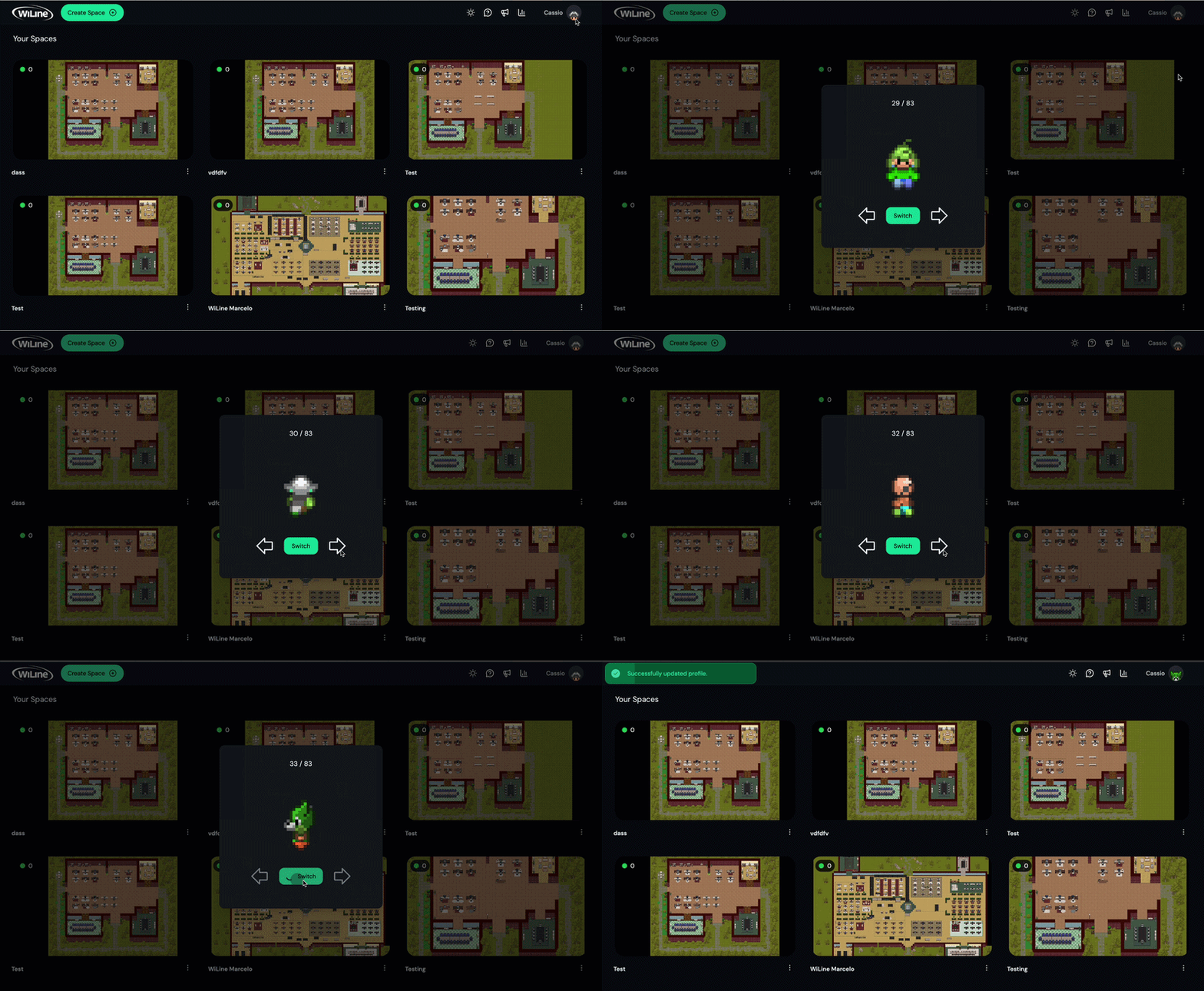
To change your avatar appearance:
- Select Change Skin.
- Browse and click any of the 86 available skins.
The selection saves immediately and updates your avatar for everyone in the space.
Settings (Administrators only)
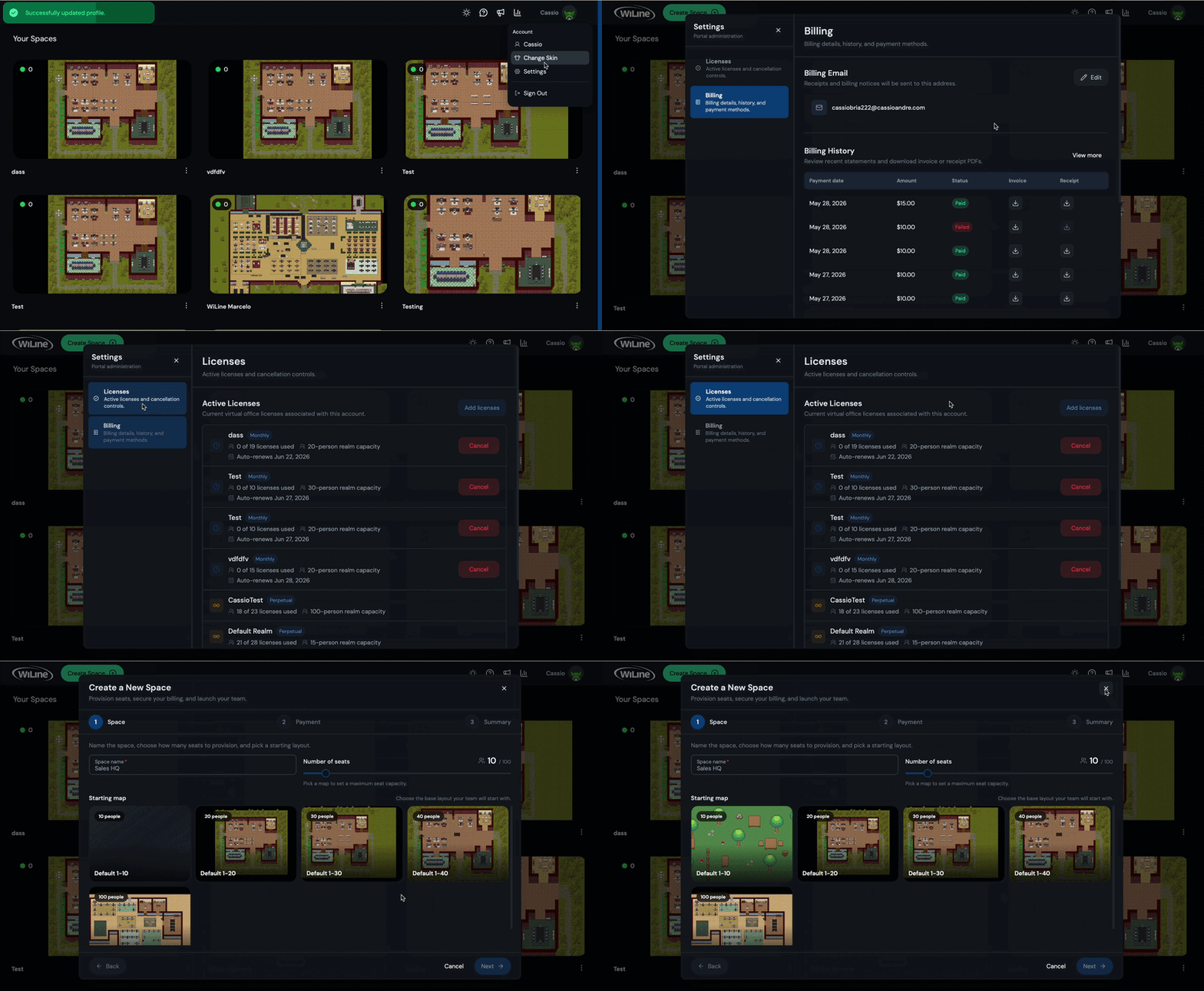
Settings gives administrators access to license and billing management.
Licenses and Billing
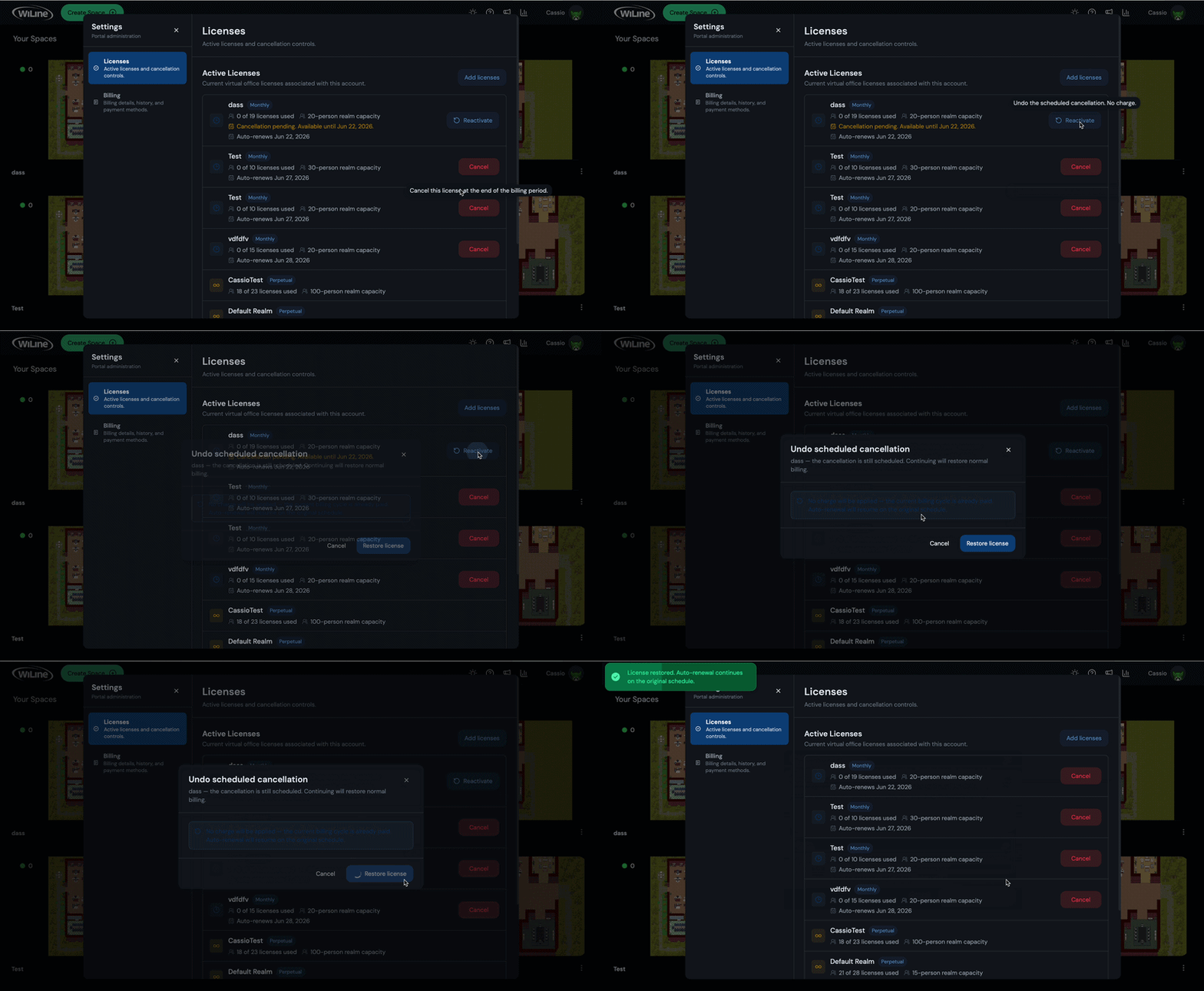
The Licenses and Billing panel lists all licenses on the account — each license corresponds to a virtual space. Depending on the license state, each row shows a Cancel or Reactivate button.
To add a new license, click the arrow on the panel. This opens the Create a Space wizard.
Cancel a license:
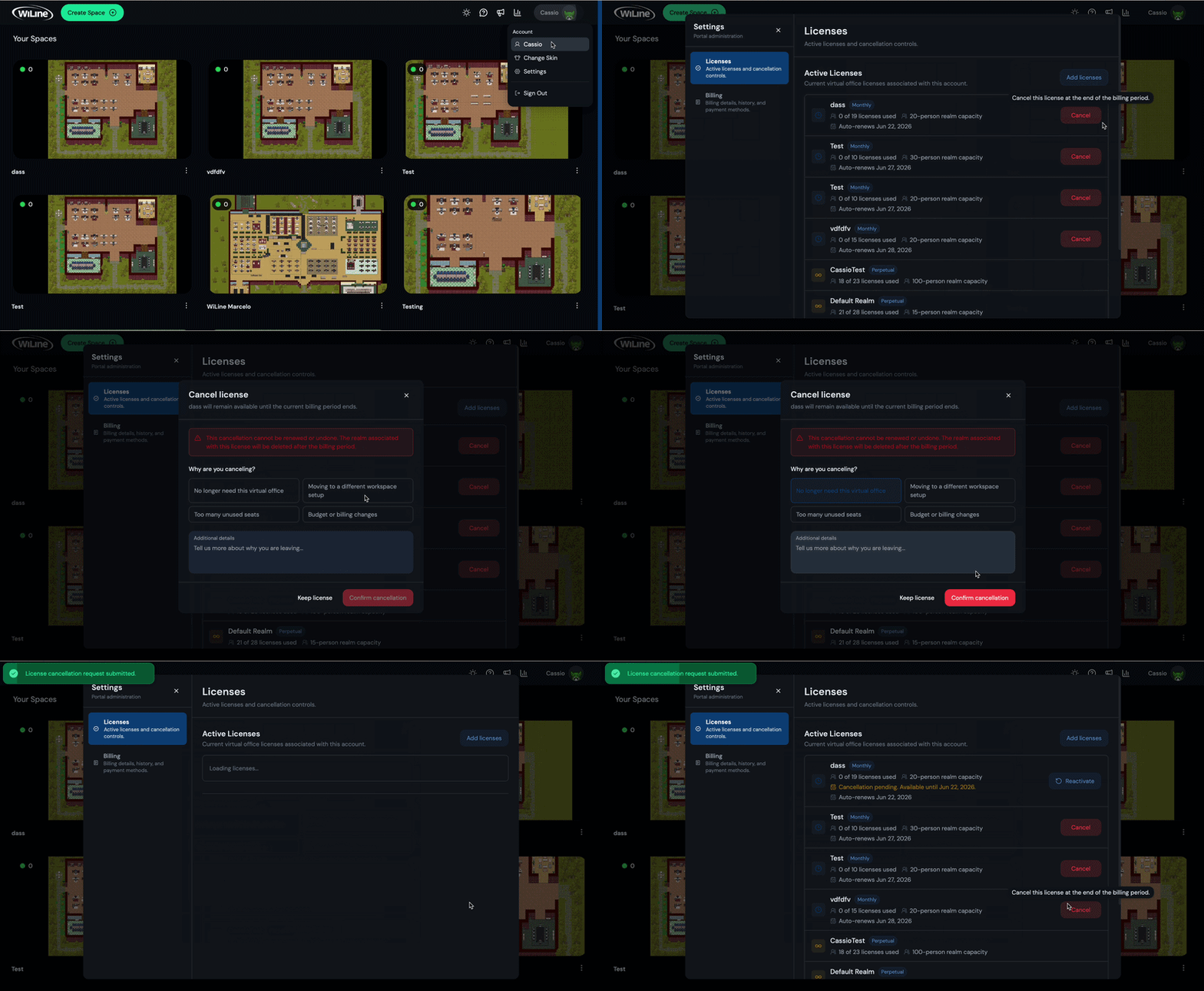
To cancel an active license:
- Click Cancel on the license row.
- Review the confirmation popup:
- The license remains available until the end of the current billing period.
- This cancellation cannot be renewed or undone.
- The realm associated with this license will be deleted after the billing period ends.
- Select a reason for cancellation:
- No longer need this virtual office
- Too many unused seats
- Moving to a different workspace setup
- Budget or billing changes
- Add any additional details (optional).
- Click Confirm Cancellation to proceed, or Keep License to go back.
Reactivate a license:
To reactivate a license that was previously cancelled but is still within its billing period:
- Click Reactivate on the license row.
- Review and adjust the number of seats if needed. Your space data is preserved exactly as it was.
- Click Next.
- Review the seat count and the saved payment method on file.
- Click Reactivate and Charge. The full billing cycle is charged to the saved card and the license is restored immediately.
Billing
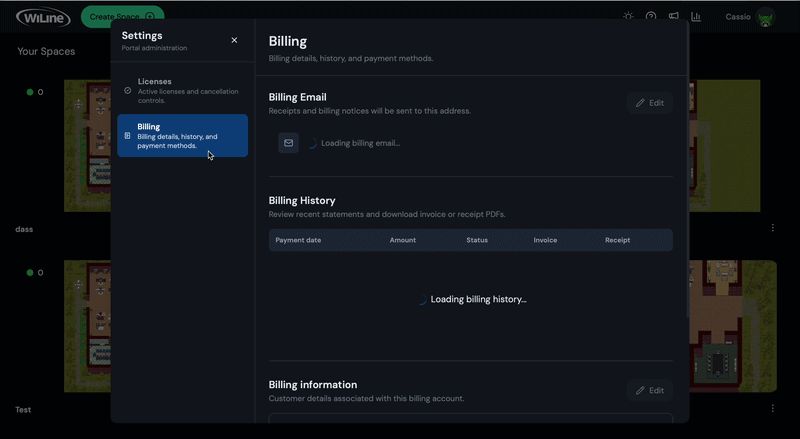
The Billing section shows your full invoice and receipt history and lets you manage payment methods and billing details.
Invoices and Receipts:
All past statements are listed with their date and status. To download an invoice or receipt, click the PDF download icon on any statement — including any that failed.
Payment Methods:
- To add a payment method, click Add new payment method and enter the card details.
- To delete a payment method, click Delete on the saved card you want to remove.
Billing Information:
At the bottom of the panel, edit the address and customer details associated with your billing account. This information appears on all invoices.
Pair Mobile Device
Pair Mobile Device lets you link the 2gether mobile app to your account by scanning a QR code — no need to type your credentials on the device.
To pair your mobile device:
- Select Pair Mobile Device from the Account Options menu.
- Open the WiLine 2gether mobile app on your phone.
- Scan the QR code displayed on screen.
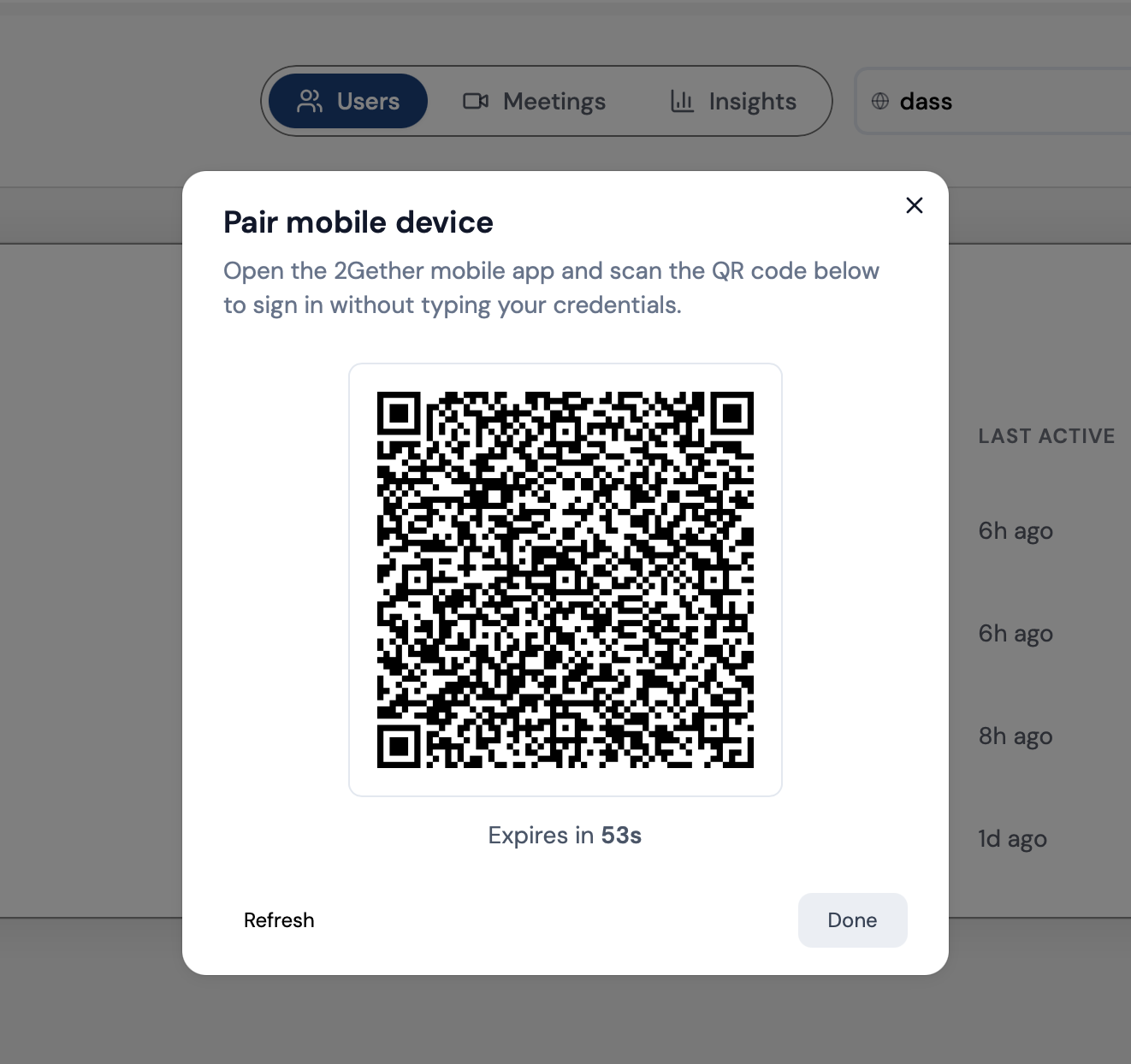
The screen displays a countdown timer — the QR code expires in 60 seconds. If it expires before you scan it, click Refresh to generate a new one. Once scanned successfully, click Done to close the window.
The QR code is single-use and time-limited. If you see the countdown reach zero, always click Refresh before attempting to scan again.
Sign Out
Select Sign Out to exit your 2gether session.
All features are accessible from the top-right area — from anywhere inside 2gether at any time.