Create a New Space
The Create Space wizard walks administrators through naming a space, choosing a layout, provisioning seats, and setting up billing — all in three steps.
Open the Wizard
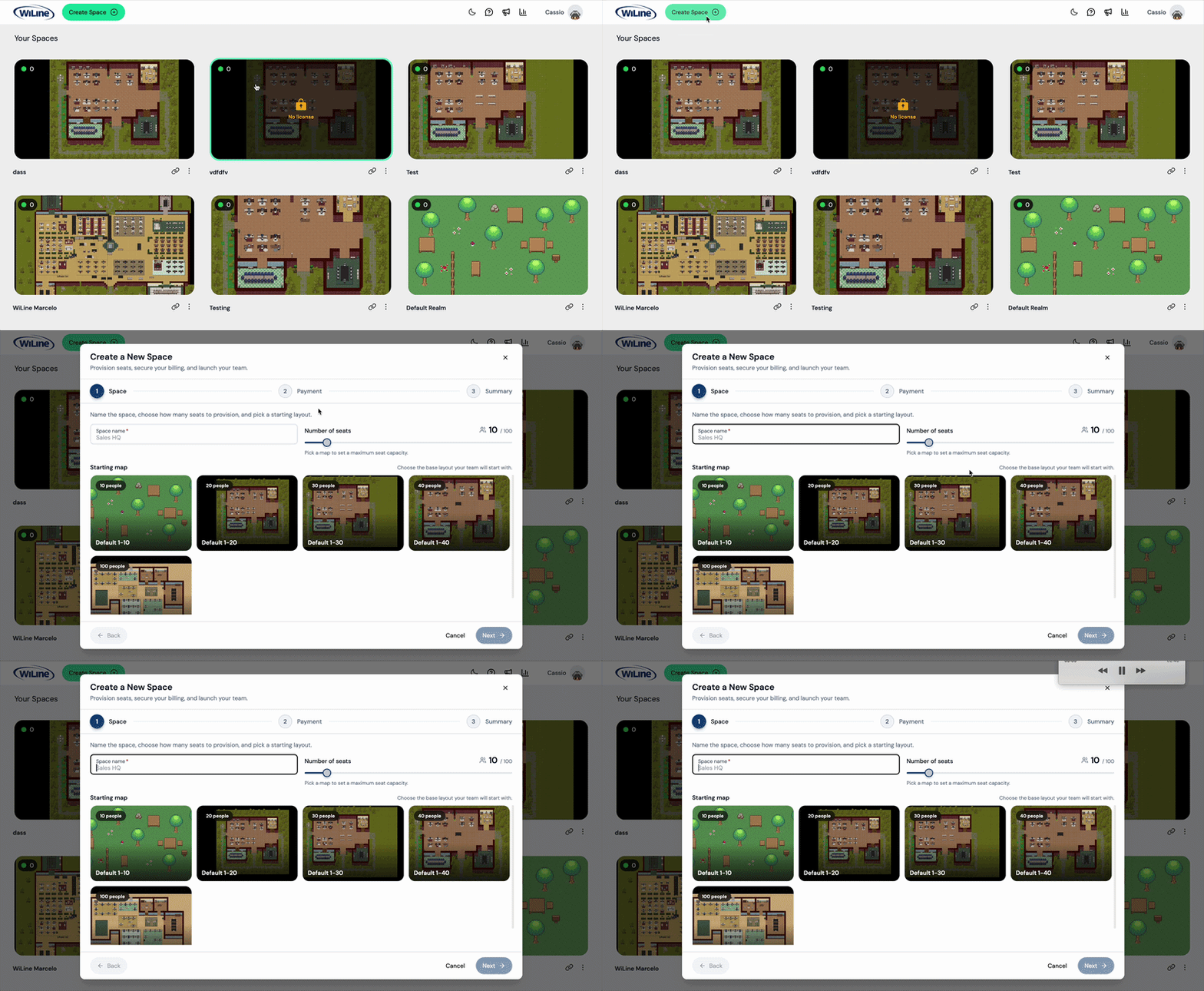
To open the Create Space wizard:
- Open the 2gether Portal URL in your browser and log in. The Spaces screen appears.
- Click the Create Space button in the top navigation bar, next to the logo.
Step 1 — Space
Fill in the space details:
- Enter a Space name. This name appears on the Spaces screen and in invitation links.
- Set the Number of seats. Default is 10. Maximum depends on the map selected.
- Choose a Starting map:
| Map | Capacity |
|---|---|
| Default 1-10 | Up to 10 people |
| Default 1-20 | Up to 20 people |
| Default 1-30 | Up to 30 people |
| Default 1-40 | Up to 40 people |
| Large Office | Up to 100 people |
- Click Next.
The seat count cannot exceed the selected map's capacity. Start with the team's current size — seats can be added later from Manage Spaces.
Step 2 — Payment
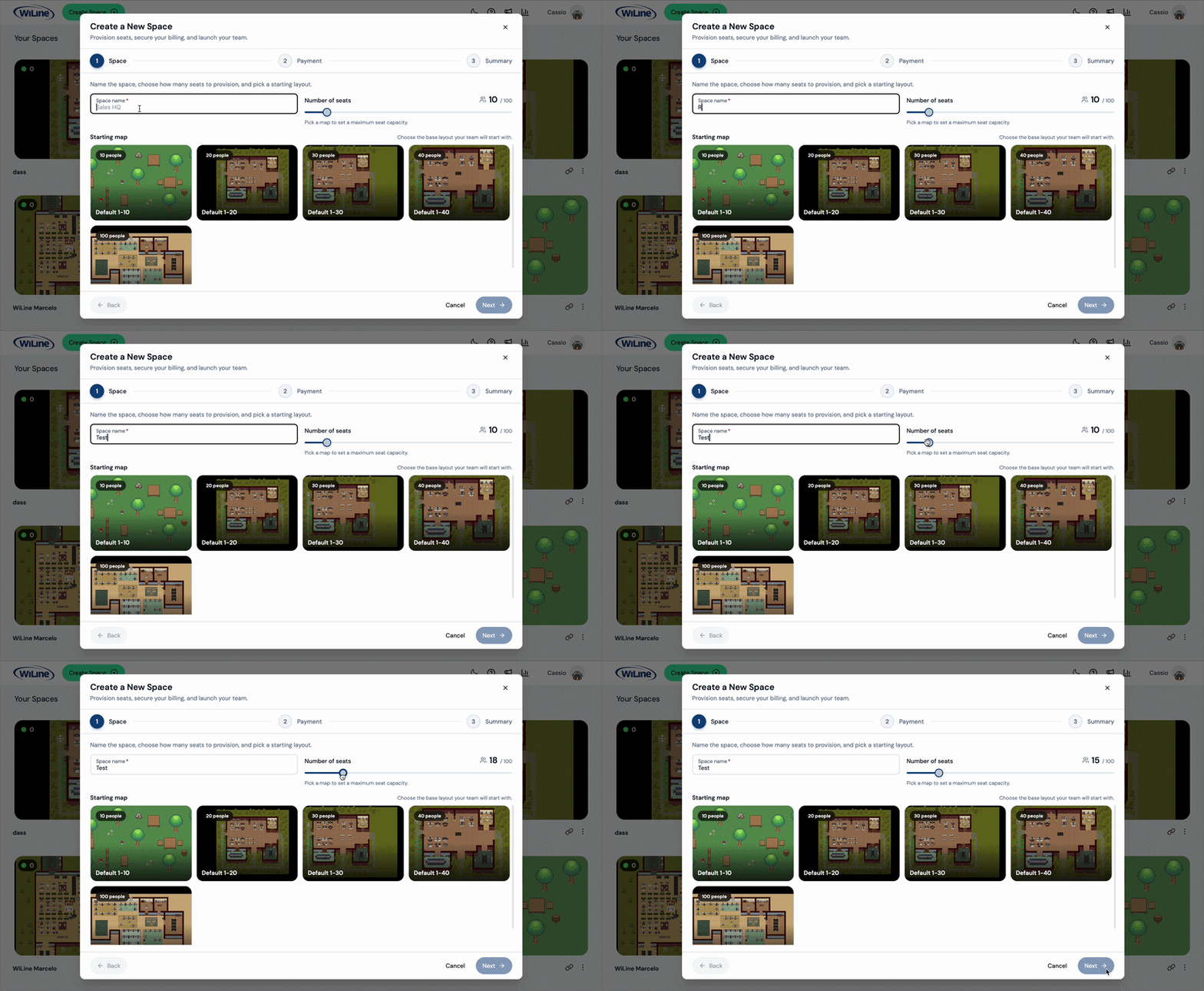
Seats are billed at $7 per seat per month.
- If a default payment method is on file, it appears pre-selected. Click Next to continue.
- To add a new card, click Add new payment method and fill in the details:
| Field | Description |
|---|---|
| Card number | 16-digit number on the front of the card. |
| Name on card | Cardholder name as it appears on the card. |
| Expiration | MM/YY format. |
| Security code | 3- or 4-digit CVV/CVC. |
Click Add, then Next.
Step 3 — Summary
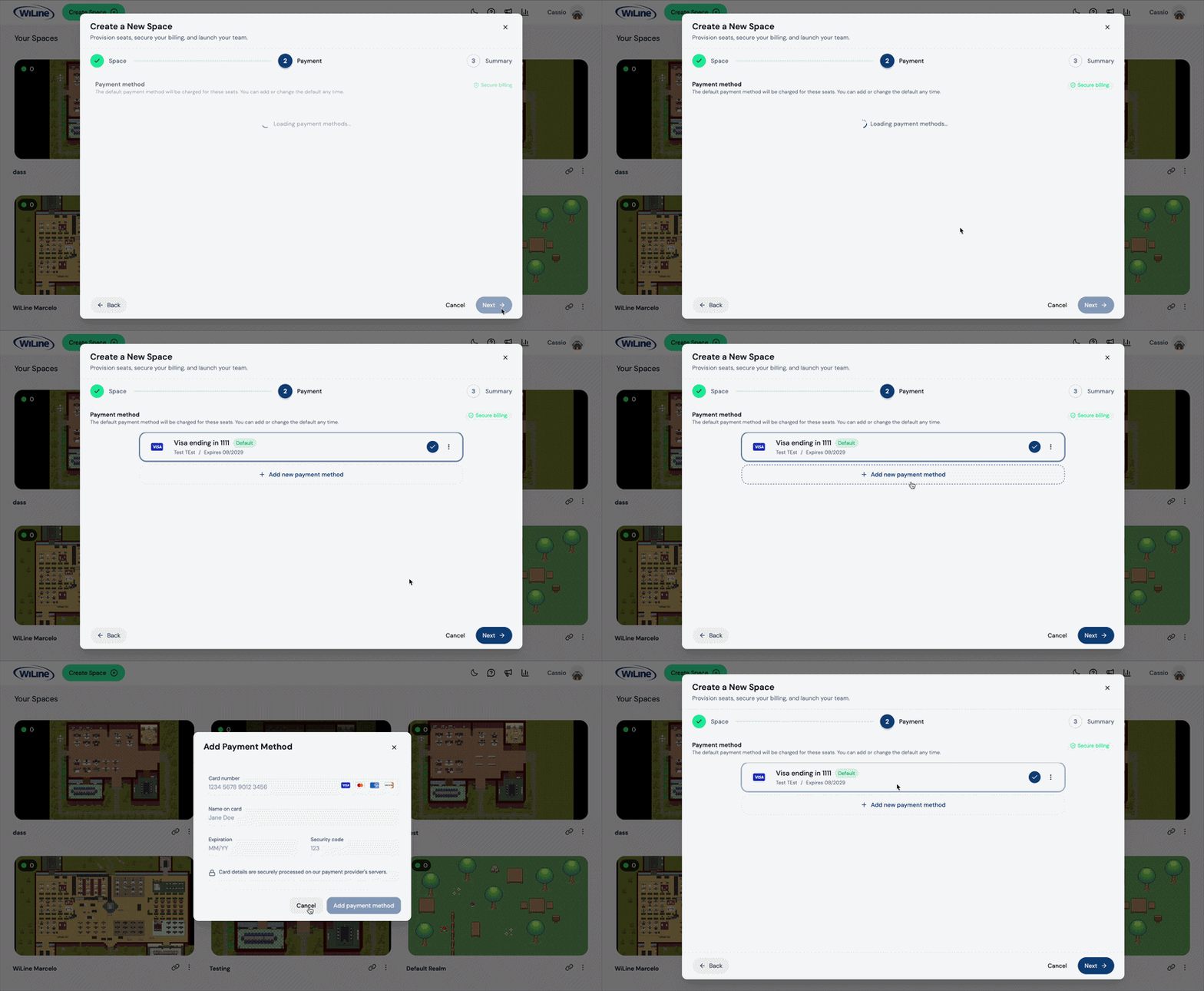
Review the order before confirming.
| Detail | Value |
|---|---|
| Space name | Name entered in Step 1. |
| Layout | Starting map selected. |
| Seats | Number of seats provisioned. |
| Unit price | $7 / seat / month |
| Total | Seats × $7, billed monthly |
| Charging | Payment method on file. |
Click Finish & Create. The space is provisioned immediately and appears on the Spaces screen.
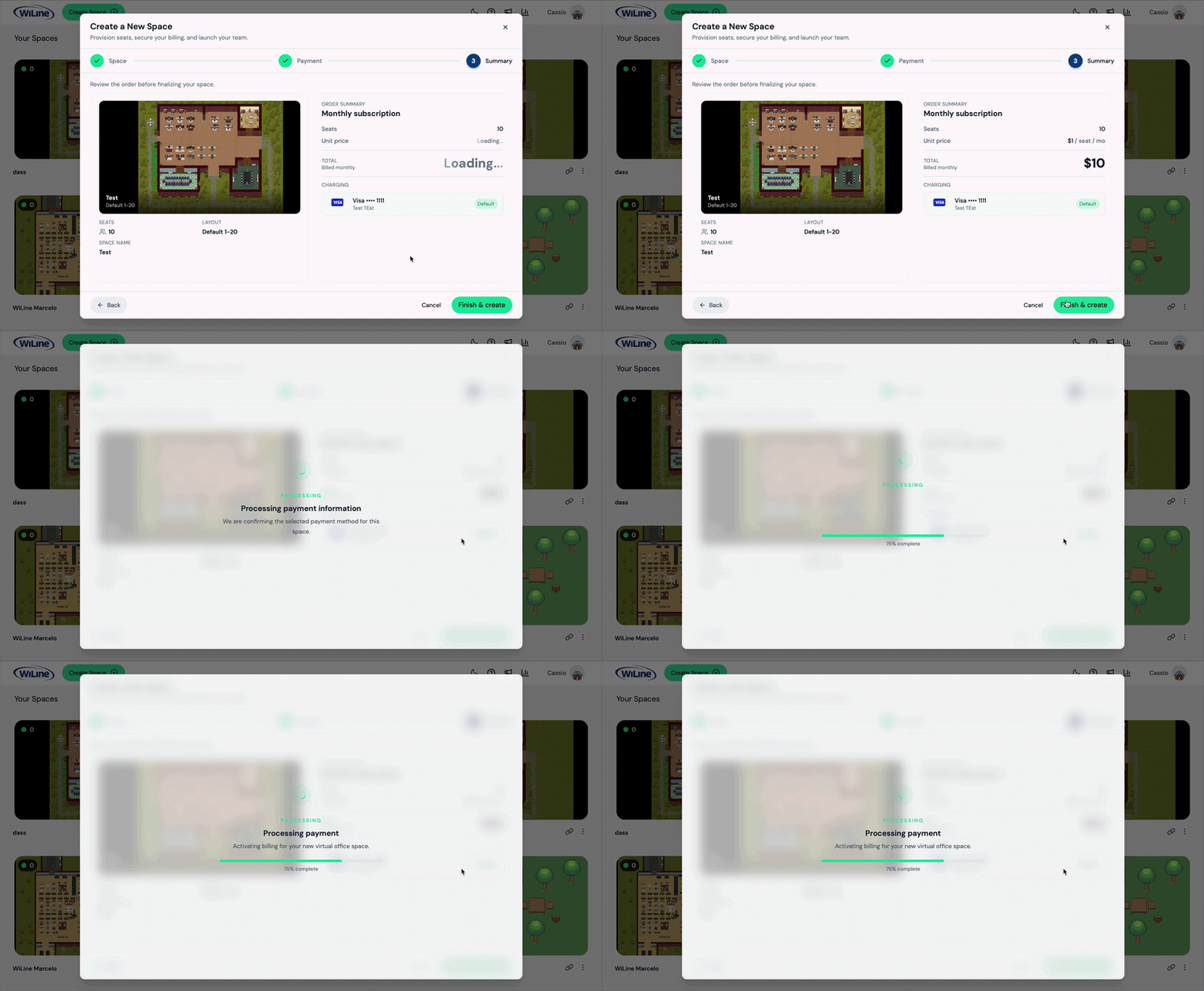
Once created, invite users and manage the space from Manage Spaces.